How to Use a Blue Light Filter For Your Computer
The majority of computer screens give off blue light, which has been
found to interrupt your circadian rhythm, leading to all sorts of
problems with your energy levels, ranging from minor tiredness to severe
lethargy. Thankfully, there are a number of ways to reduce your
exposure to blue light, some of which can be found on certain Windows
and Apple computers, while others can be downloaded from third-party
sites.
Why Blue Light is Harmful?
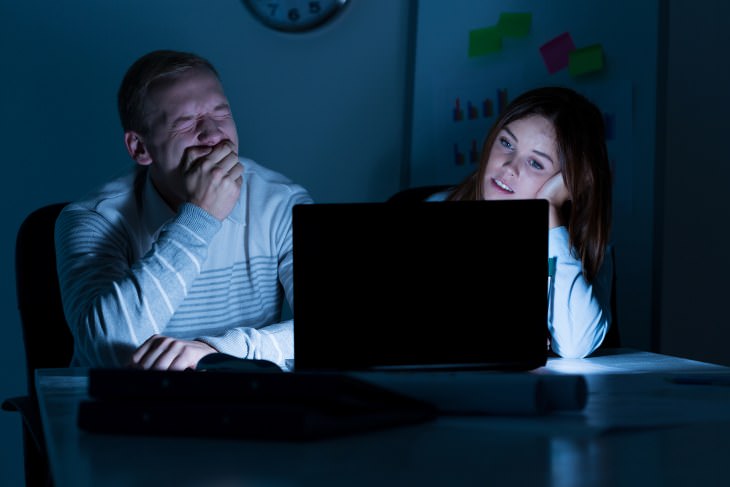 There is a purely biological reason as to why blue light hurts us. Sleep
is one of the most important components of our circadian rhythm, which
is a chain of processes that are determined by how much light or
darkness we are exposed to.
There is a purely biological reason as to why blue light hurts us. Sleep
is one of the most important components of our circadian rhythm, which
is a chain of processes that are determined by how much light or
darkness we are exposed to.
In natural environments, where you are only exposed to sunlight, your retinas will sense the setting of the sun, which will induce your hypothalamus to command your body to produce melatonin and other hormones associated with sleep to lower your body's temperature.
However, by using artificial lighting to make the working day longer,
our bodies become confused, resulting in the disruption of the various
sleep signals. What's more, the emission of blue light from computer
screens and other sources causes us to become more alert, to produce
less melatonin, and thus significantly decrease our chances of getting a
good night's sleep.
Blue Light Filters For Windows 10
Windows 10 has had a blue light limiting feature ever since the April
2017 Creators Update called Night Light, which shifts the display to
only show warmer colors. Here's how to activate it: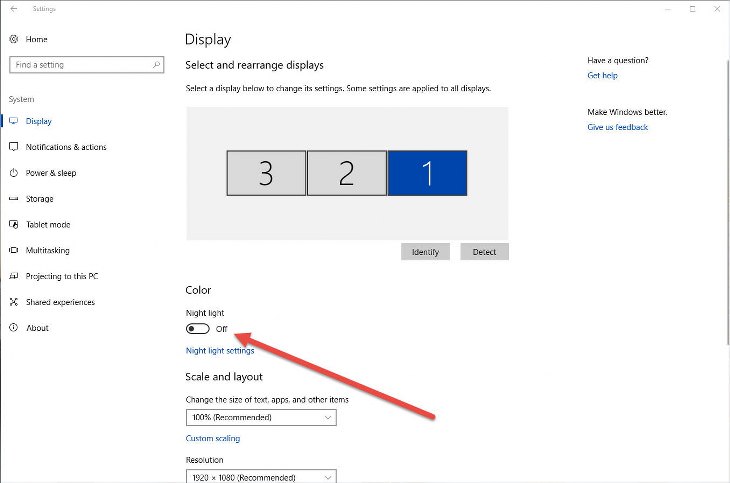
Step 1: Go to the settings menu by searching in the search box.
Step 2: From the menu, choose "System".
Step 3: Click on “Display” from the left-hand menu if it hasn't been automatically selected.
Step 4: From here, you'll be able to toggle the "Night Light" feature on.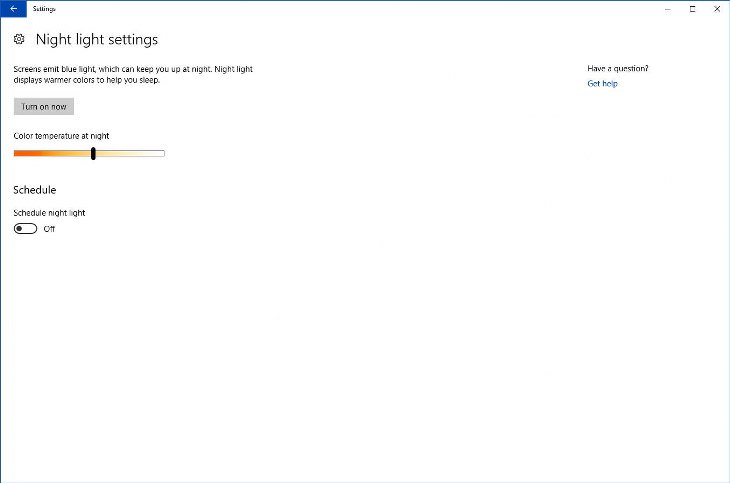
To customize the Night Light's functionality, click on “Night light settings.” You'll be able to schedule a time for this feature to turn on by itself, as well as adjust the range of colors which will be displayed when it is active.
Blue Light Filters For Apple (MacOS)
Apple users have the chance to limit their blue light exposure through
the use of a feature called "Night Shift", which was introduced to MacOS
systems in the March 2017 MacOS Sierra update. Here's how to activate
this great feature: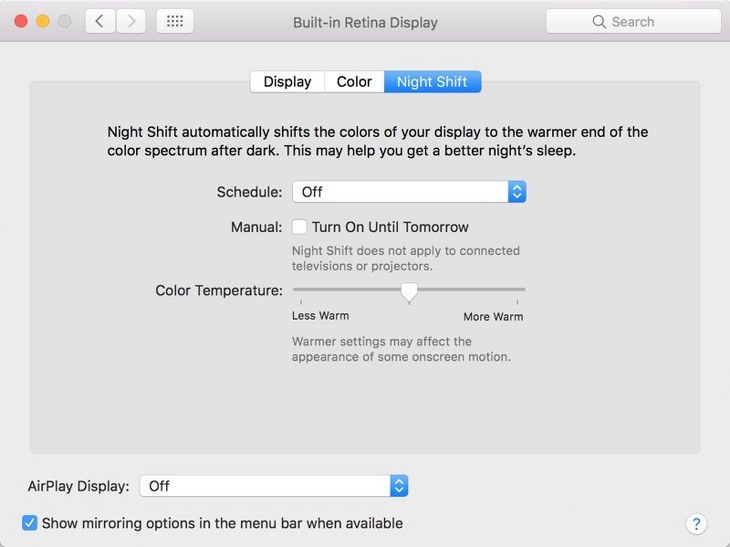
Sep 1: Open up the “System Preferences” page.
Step 2: Choose “Displays,” and then click on the “Night Shift” button.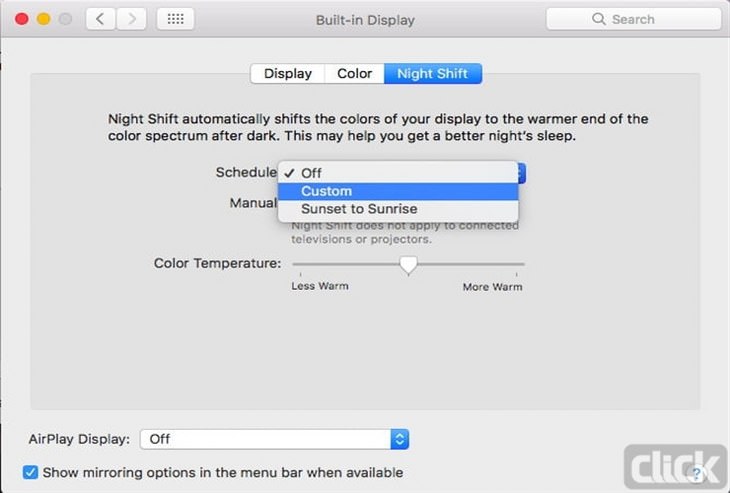
If you click on the "Settings" page, you'll be able to configure practically the same features that you can on Windows 10, such as the color temperature and when it will automatically activate and deactivate.
If the inbuilt Windows or MacOS blue light filters aren't quite what you're looking for, then there is a whole range of third-party alternatives you can try out instead. Here are the two we found to be the most superior:
Iris Mini - This simple blue light filter is the best for people who want results without lots of extra confusing options. You simply need to turn it on and it will do the rest by itself.
F.lux - This great app is free for MacOS, Windows and even Linux operating systems. By tracking the sun in your local area, it will adjust your monitor's color scheme to the appropriate level. What's really great about this app is the ability for it to turn itself off when you are doing certain tasks, such as watching a movie or playing a video game, so that your experience isn't hindered.